




















Below, we’ll give you an overview of the automatic email notifications available in SalonLife and how to use them, to keep your communication with clients as smooth and personal as possible. We’ll also briefly cover how salon staff can set up their own incoming staff notifications.
General Information About Email Notifications
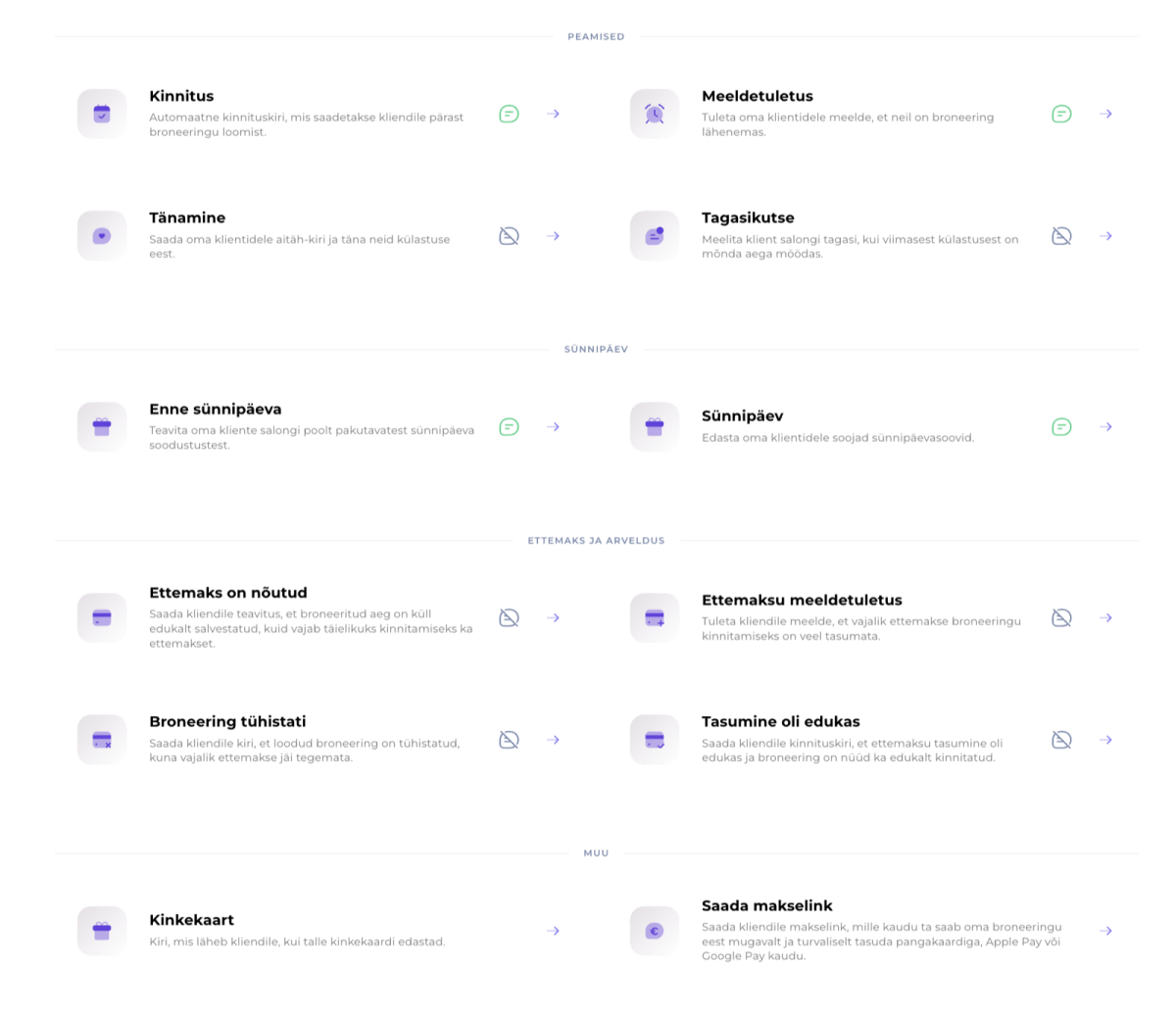
SalonLife gives you full control over your automatic email notifications. You can decide exactly which notifications are active, when they go out to the client (before or after the booking), and what each notification says.
This is a great way to:
- Remind clients about upcoming bookings.
- Thank clients for their visit.
- Direct them to book again or leave feedback.
- Send birthday greetings or special offers.
The content of every email can be edited. Notifications also include special blue, automatically-changing “smart fields”, which are replaced with client or booking data (like first name, service name, booking time, and so on). This saves you time, so you don’t have to rewrite every email yourself.
TIP:
Add the client’s name to the start of the email — for example, “Hi, [ClientFirstName]!” — so every email you send out feels personal.
Seven Automatic Email Notifications
SalonLife has a total of seven notifications concerning clients. Here’s a short description of each:
Confirmation Email
• Sent to the client right after the booking is created
• If the booking is made through the online booking link, the email is always sent automatically
• For a manually entered booking, you’re asked whether you want to send the confirmation email to the client
Reminder Email
• Reminds the client of an upcoming booking
• You can set how many hours or days before the service starts the email goes out
Thank-You Email
• Sent after the client’s visit
• A chance to thank the client and direct them to leave feedback or book again
Win-Back Email
• Sent to the client if they haven’t made a new booking within a certain period
• A great way to bring the client back, for example with a discount offer
Birthday Email (Before the Birthday)
• Sent a day or several days before the client’s birthday
• A chance to let them know about birthday discounts or special offers
Birthday Email (On the Birthday)
• Sent to the client on their birthday
• A personal greeting that creates a positive feeling and strengthens the client relationship
Gift Card Email
• Sent to the client when they’re sent a gift card through SalonLife
• A good place to add a personal note or instructions for using the gift card
Prepayment Required
• Lets the client know that their booking has been saved but needs a prepayment to be confirmed
• Helps reduce misunderstandings and confirms the payment obligation
Prepayment Reminder
• Reminds the client that the prepayment needed to confirm their booking is still unpaid
• Directs the client to complete the payment
Booking Canceled
• Sent if the booking was canceled because the prepayment wasn’t made
• Gives the client clear information that the booking’s status has changed
Payment Successful
• A confirmation email letting the client know the prepayment has arrived
• The booking is now fully confirmed
Send Payment Link
• An email that sends the client a personal payment link
• The client can pay conveniently by card, Apple Pay, or Google Pay
TIP:
To activate or edit any email notification, go to Apps → select “Email Notifications” → then select the email you want to edit → Send to Client’s Email (confirmation email/reminder email)? → Select ''Yes'' → Save.
Staff Email Notifications
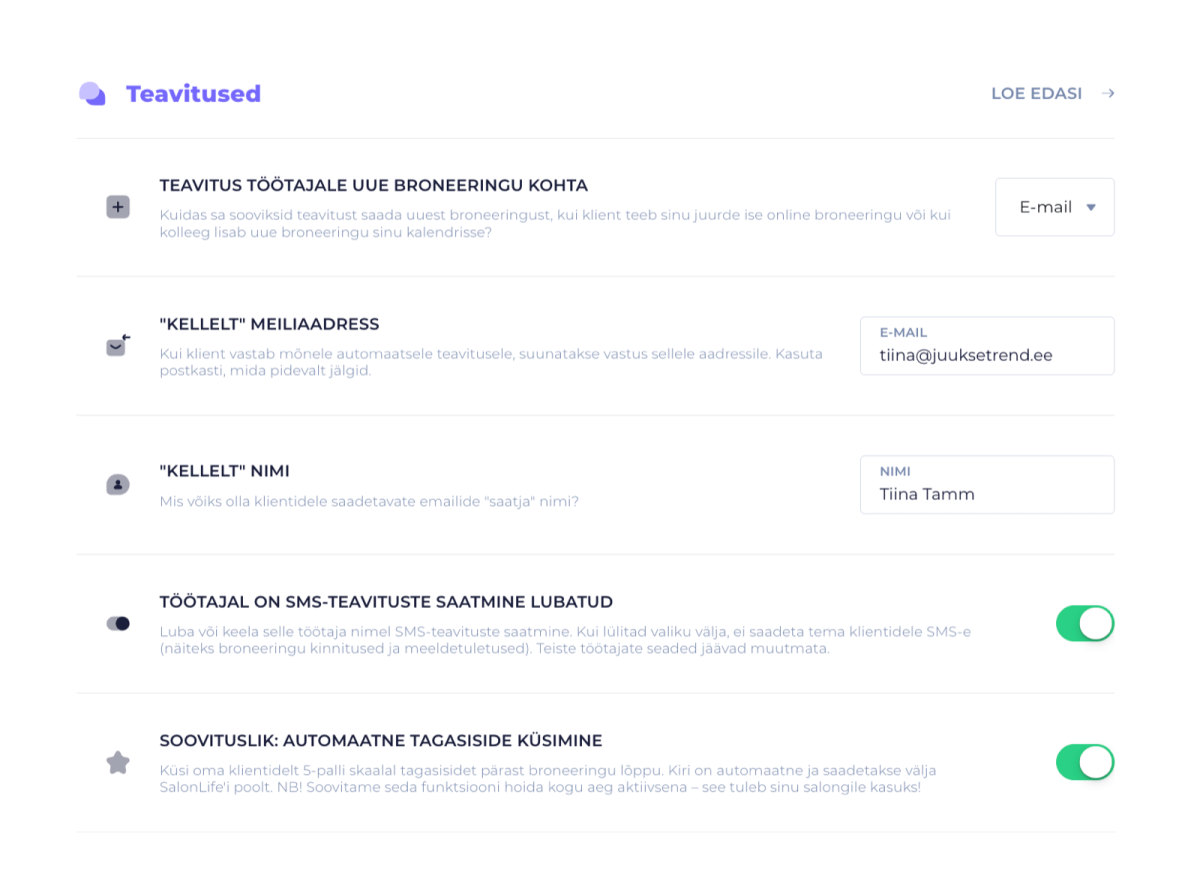
In addition to the client-facing email settings, you can also customize staff members' own preferences. For example, whether you’d also like to be notified yourself when a client makes an online booking. To do this:
- Go to Apps, select Staff.
- Click the profile of the staff member you want, then find Settings and then Notifications.
- You can then set:
- Whether you want to receive an email notification when a client adds a new booking?
- Whether you also want to receive notifications by SMS?
- Which email address the notification is sent from?
- How the staff member’s name is shown to the client under the email.
TIP:
If you have several staff members, it’s worth checking each one’s email address and notification preferences to make sure they’re correct. That way, everyone on staff stays up to date with what’s happening at the salon.
SalonLife’s email notifications help you automate your correspondence with clients and make it even more personal. You can set up all seven automatic emails to fit your needs, changing both the content and the other settings. You can also set up notifications for both yourself and your staff.
If you have any questions about email notifications, feel free to reach out to SalonLife customer support.