




















How Do You Add Booking Terms to Online Booking?
If you want clients to know your salon’s rules and agreements before confirming a booking, you can use the booking terms feature. This lets the client review the terms before completing a booking or payment, and confirm that they agree to them.
In your booking terms, you can include things like your cancellation policy, late-cancellation fees, no-show fees, or any other important information you want clients to know before booking or paying for a service.
Step-by-Step Guide
_20(1).png)
1. Open the Booking Terms Settings
- Go to Apps -> Online Payments & Invoices -> Settings
- Scroll down the page to find the Booking Terms option
- Click it to open the terms setup view
2. Add Your Booking Terms
In the view that opens, you can fill in two fields.
Checkbox Label
This is the text the client sees next to the consent checkbox.
For example:
- I have read and agree to the terms
- I agree to the salon’s booking terms
Terms Content
Here you can enter all the detailed information the client needs to agree to.
For example:
- cancellation terms
- late-cancellation fees
- no-show fees
- prepayment terms
- salon house rules
- other important information for clients
If you’d like, you can use bold text, underlining, and lists to make the terms clearer and easier to read.
3. Choose When the Terms Are Shown to the Client
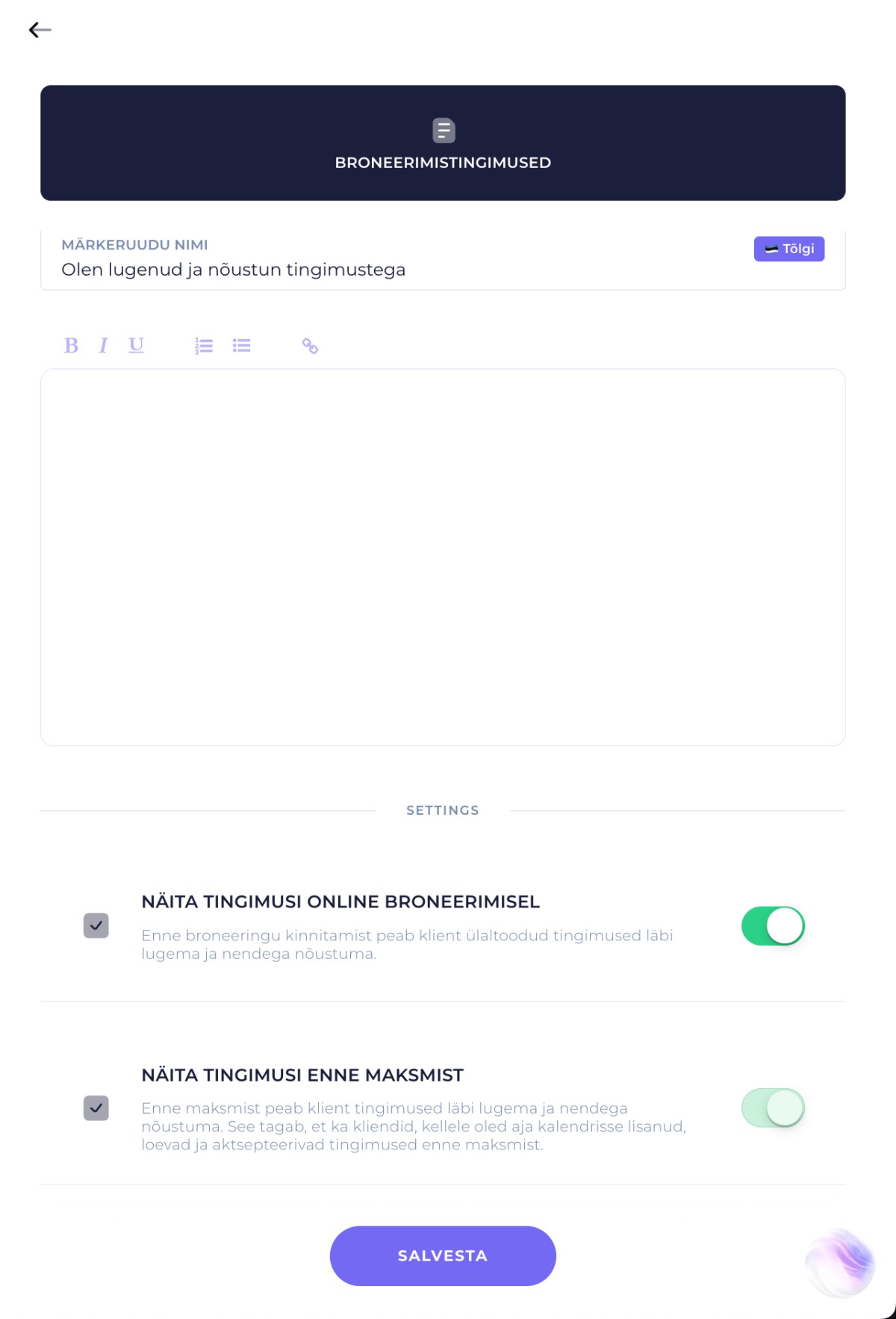
At the bottom of the booking terms page, you can set which situations require the client to agree to the terms.
1) Show terms during online booking
When this option is turned on, the terms are shown to the client while they’re making an online booking, before the booking is confirmed. The client must tick the consent checkbox to proceed with the booking.
This is a good fit if you want every client to have reviewed your terms at the moment of booking.
2) Show terms before payment
When this option is turned on, the client must agree to the terms before making a payment. This applies both to payments made during online booking and to payments made through a payment link.
This helps ensure that clients whose appointment was added manually to the calendar, and who pay later via a payment link, also confirm their agreement to the terms before paying.
If you’d like, you can turn on both options. In that case, the terms are shown both at the time of booking and before payment.
Once you’ve made your changes, click Save.
TIP:
If you use prepayments or apply late-cancellation and no-show fees, it’s worth showing the terms both at the time of booking and before payment. That way, the important information is visible to the client at several stages, and there’s less room for misunderstandings later.
Not sure what to definitely include in your booking terms? Check out the guidance on booking terms content in the other article HERE.