




















How to Send a Client a Manual Payment Option
In SalonLife, you can offer clients two different manual payment options. This comes in handy when a client wants to pay by card, the next client is already waiting, or a client doesn’t want to get their physical card out.
After clicking on a booking, tap the Checkout icon to see several different payment options:
1. A Previously Saved Card
_20(1).png)
If a client has already saved their card details in SalonLife, you can take payment directly from the saved card.
A client’s card details might already be saved if:
• they paid a prepayment before
• they saved their card while booking online
• they’ve used the same card at another SalonLife salon
In that case, the checkout screen shows the last digits of the client’s card, listed under Preferred Payment Method.
The client doesn’t need to bring their physical card or enter their details again.
What Happens After You Select Payment by Saved Card?
_20(1).png)
For the Salon
• the system sends the client a unique security code
• ask the client to read out the security code
• enter the security code in the checkout’s code field
• payment is then taken from the client’s saved card
• the booking is automatically marked as paid
• a record of the payment stays in the checkout
• you can download the invoice or receipt if needed
For the Client
• SalonLife sends the client a security code, which confirms they agree to pay for the booking using their saved card
• the client reads the security code out to the salon
• the client doesn’t need to get their card out or enter their details again
• once the security code is confirmed, payment happens quickly and automatically
• the client receives payment confirmation from their bank or payment provider
2. Send a Payment Link
_20(1).png)
If the client doesn’t have a card saved, or you’d rather they pay themselves on their phone, you can use the Send Payment Link option.
Using the payment link, the client can pay:
• via Apple Pay
• via Google Pay
• with a Visa or Mastercard card
• by entering their card details through their bank
The payment link isn’t sent to the client automatically after the booking is made—you always send it yourself, manually.
When Do Manual Payment Options Come in Handy?
These options work well when, for example:
• a client wants to pay by card
• the next client is already waiting and you want to finish billing quickly
• a client forgot their wallet at home
• you want to cut down on time spent waiting at checkout
• a client wants the convenience of paying from their phone
What Happens After You Send a Payment Link?
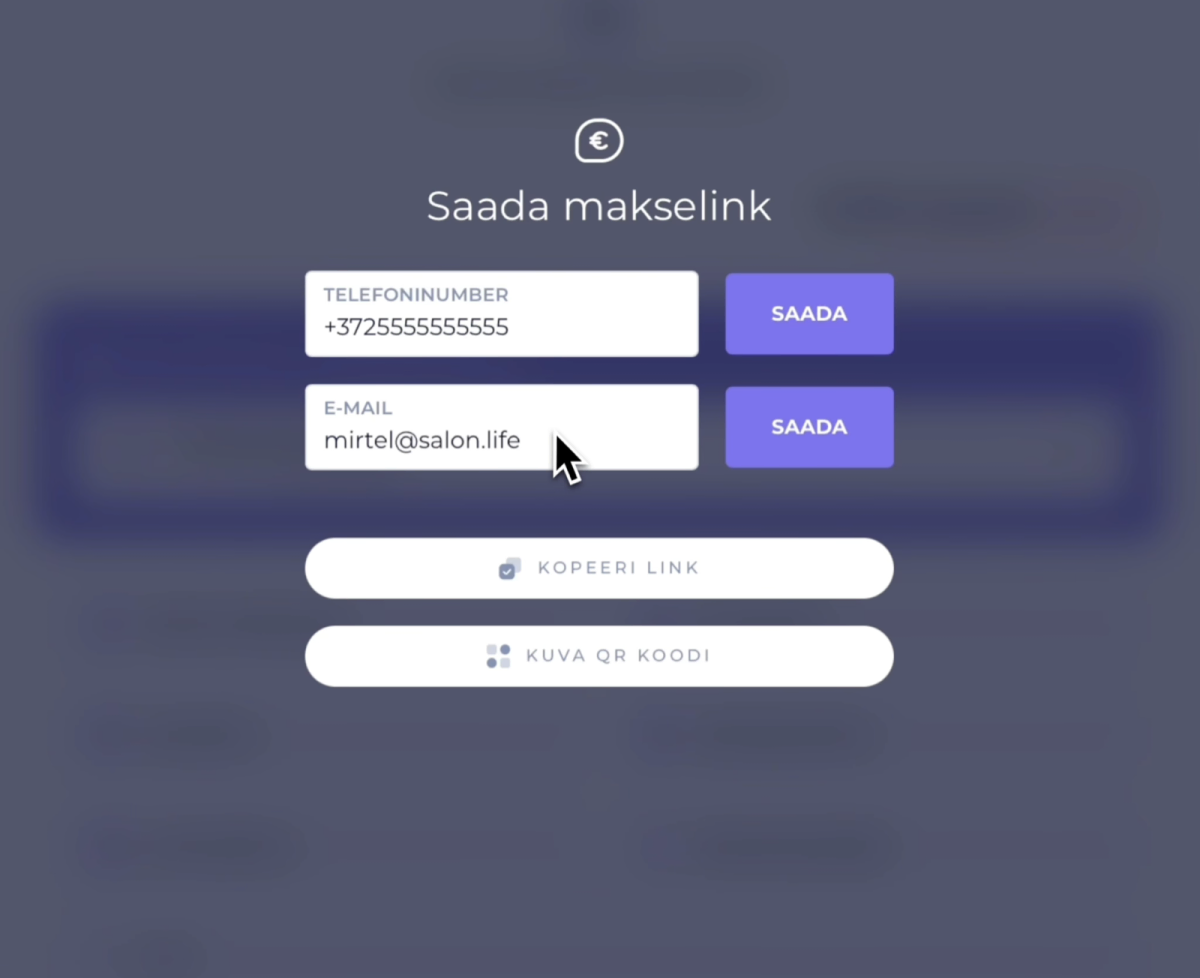
For the Salon
• SalonLife generates a secure payment link for the client
• you can share the link by email, SMS, web link, or QR code
• the system waits for the client’s payment
• once payment succeeds, the booking is automatically marked as paid
• the payment amount and any tip are shown separately at checkout
For the Client
• the client opens the payment link on their phone
• the client sees the booking details, services, and amount due
• the client can choose a payment method that suits them
• the client can add a tip for the staff member if they’d like
• once payment succeeds, the client sees a confirmation message
.png)
Quick Step-by-Step Guide
- Open the client’s booking.
- Select the Checkout button from the booking.
- At checkout, you’ll see the available manual payment options:
- • Saved Card
• Send Payment Link
Option A: Saved Card
- If the client has a card saved, it appears under Preferred Payment Method.
- Tap the saved card.
- The system sends the client a unique security code. Enter it in SalonLife’s code field.
- The system takes payment directly from the client’s saved card.
- The booking is marked as paid.
Option B: Send Payment Link
- Tap Send Payment Link.
- Choose how you want to share the payment link with the client:
- • by email
• to a phone number
• as a copied link
• as a QR code - The client opens the payment link on their phone.
- The client sees on the payment page:
- • the salon’s name
• the booking details
• the services
• the amount due - The client pays with Apple Pay, Google Pay, or a card.
- Once payment succeeds, the booking automatically becomes paid.
Leaving a Tip
When paying through a payment link, the client can also choose to leave a tip for the staff member. Before confirming payment, they’ll see an option to easily pick a tip amount or percentage.
If the client leaves a tip, it shows up as a separate amount in the booking’s payment details.
What’s the Difference Between an Invoice and a Receipt?
Once payment is made, you can download and send the client:
• Invoice — a more detailed, full-size A4 document
• Receipt — a shorter proof-of-payment slip, which you can also print from the checkout printer if needed
TIP: If the client is at the salon in person, the fastest option is to display a QR code. They can scan it with their phone and complete the payment themselves in seconds.
Manual payment options make billing faster, more convenient, and more flexible for both the salon and the client.