




















In the SalonLife calendar view, you can conveniently manage and keep track of your bookings. Below, we’ll give you an overview of the main options the calendar’s navigation bar offers.
The calendar helps you keep an eye on all your bookings: see when your workdays are, when your days off are, and quickly move or change existing bookings when needed. In the sections below, we’ll walk you step by step through how to get around the calendar using its different features, and what those features let you do.
1. Mini-Calendar: Helps You Quickly Move Between Months and Weeks
_2520(1).png)
The Calendar button (on the left side of the purple navigation bar) opens a mini-calendar that makes moving between months and weeks quick and easy.
- Clicking the Calendar button opens a small calendar where you can select a specific day, week, or month.
- You can also use the arrows there to quickly move to earlier or later years.
- What the colors mean in the mini-calendar:
- Black dates: active workdays marked in your calendar.
- Red dates: days off.
- Purple date: today.
- Gray dates: days outside the current month.
TIP:
The mini-calendar is especially handy on a phone or tablet when you want to quickly "jump" a few weeks or months ahead, without having to constantly scroll the screen.
2. On Hold Button: Temporarily Storing Bookings
_2520(1).png)
If a client cancels an appointment but isn’t quite sure yet when to book a new one, or you need to remove a booking from the calendar for a while, the "On Hold" feature can help.
- Click the On Hold button in the middle of the purple navigation bar, and a small drawer opens.
- Drag the booking you want straight from the calendar into that drawer.
- The booking disappears from the schedule but stays in the On Hold drawer.
- Once the client lets you know they want a new time, you can drag that same booking back into the calendar, onto the right date and time.
TIP:
By keeping it in the On Hold drawer, you don’t have to recreate the booking from scratch when needed-you can just drag it back into the right spot.
3. Moving Between the Previous, Current, and Next Week’s View
.png)
In the middle of the navigation bar are these buttons:
- Left arrow: moves to the previous week in week view, or the previous day in day view.
- Curved left arrow : instantly jumps back to today’s date or week view.
- Right arrow: moves to the next week in week view, or the next day in day view.
TIP:
If you’re working on a computer, you can move between previous and next the same way using your keyboard’s arrow keys. On mobile, it’s easy to do the same by "swiping" left and right with your finger.
4. Day or Week View
_2520(2).png)
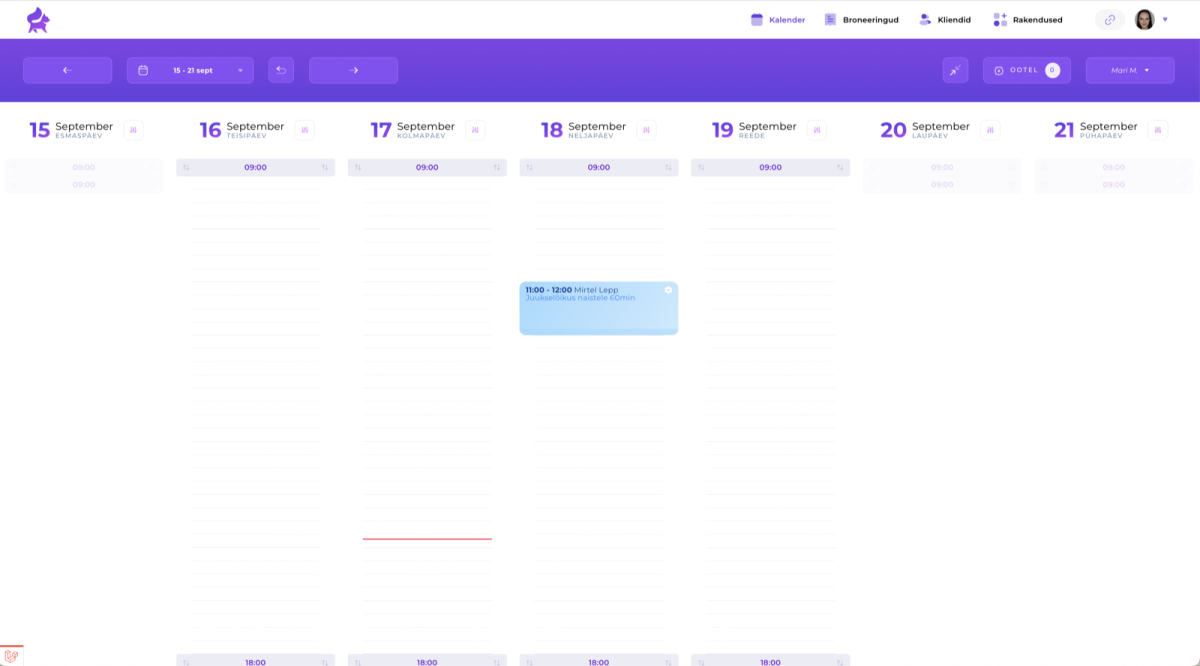
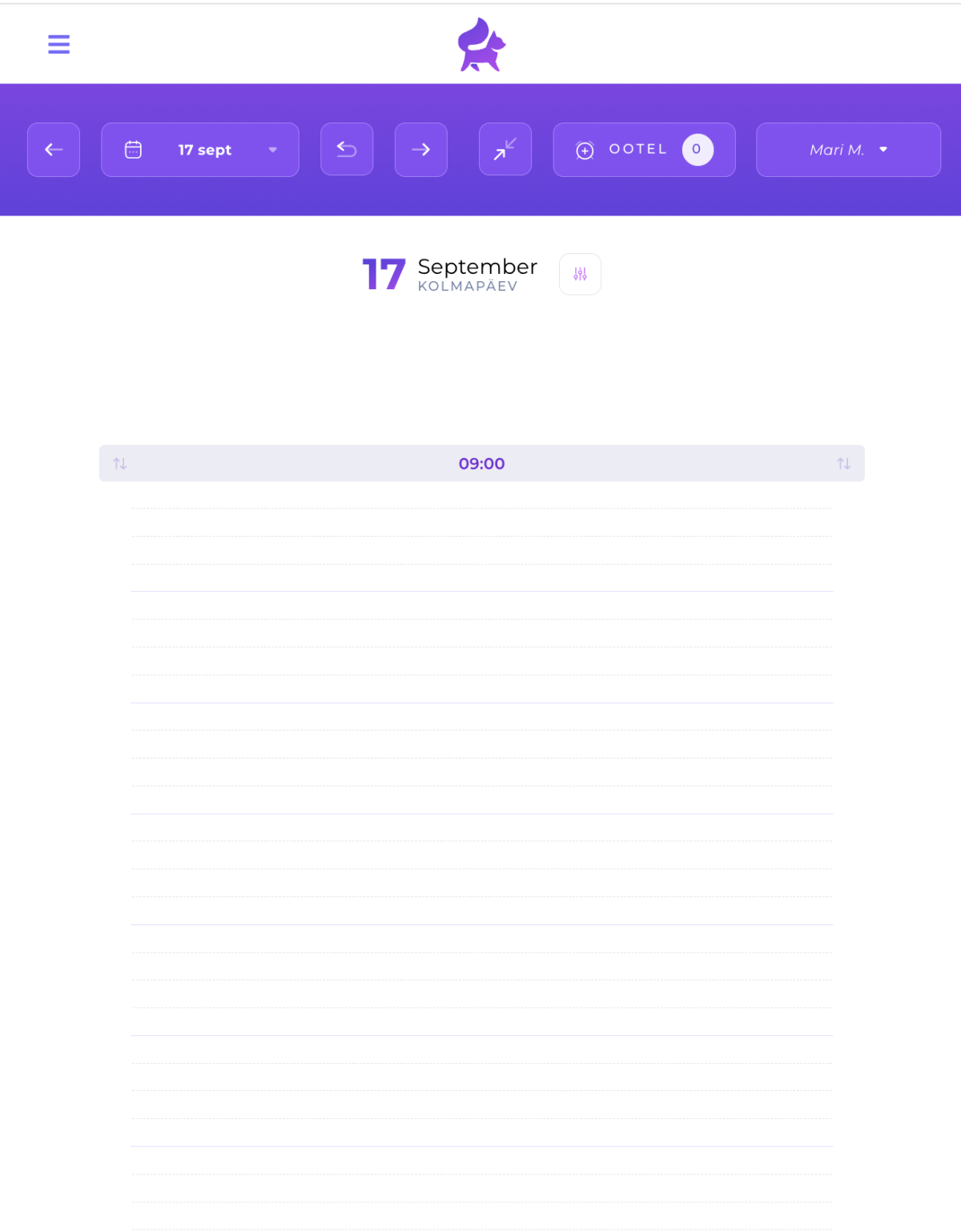
If you want to switch your calendar’s display on a computer to the day view instead, just click the double-arrow button. You can use that same button to switch back from day view to week view too.
- The week view is open by default in the desktop version. It lets you follow a whole week’s bookings at once.
- The day view is open by default on mobile devices, so it’s easier to manage one day at a time on a narrow screen.
TIP:
Working one day at a time on a mobile device prevents you from accidentally dragging a booking onto the wrong day or staff member. If you’d still like to see more days at once on a mobile device, you can zoom out in your browser (e.g., 100% → 70%) to see a bigger area at once.
5. Multi-Staff View
_2520(2).png)
The last button on the purple navigation bar (on the right side) shows whose calendar you’re currently viewing.
Clicking that button:
- Opens a list of the salon’s staff members who have a SalonLife account.
- Select using a checkbox whichever staff member’s schedule you want to see. You can view several staff members' workdays at the same time.
- Save your changes. The calendar shows the selected staff members' bookings side by side.
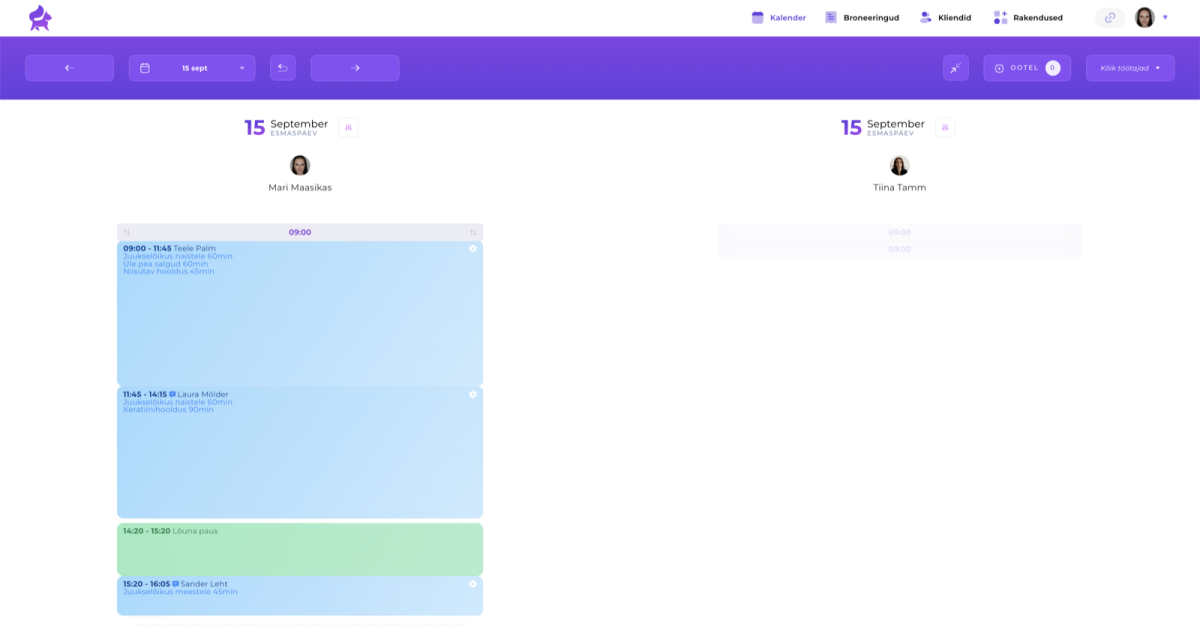
This way, you can easily follow different staff members' work schedules at the same time.
The calendar’s navigation bar is your main helper in SalonLife, letting you quickly and conveniently:
- Jump between different days, weeks, and months.
- Temporarily hold bookings "On Hold."
- Move to the previous, current, and next view with a single click.
- Switch between day and week view depending on your device and needs.
- Display one or several staff members in one view.
Try out these buttons and options for yourself, and see how convenient the SalonLife calendar is to use in your day-to-day work!