




















In SalonLife, you can conveniently set up your service list and its features to match your own preferences. Below you’ll find an overview of how to add and set up your own services, and remove demo services if needed.
Deleting Demo Services
After you create your account, your services list initially contains sample, or (demo), services. It’s a good idea to delete these before adding your own services.
.png)
- Go to the Apps page.
- Select Services.
- Find the demo service you want in the service list.
- Click the three dots on the service’s row.
- Select Delete Service.
That’s how you can quickly remove all the sample services from your account.
Creating Categories
Before adding your own services, it’s a good idea to first create suitable service categories. This helps organize your service list better and makes it easier for both you and your clients to find things.
.png)
- Select Services from the Apps page, then the Categories tab.
- Click the (+) button in the top right corner.
- Enter the category name (e.g., "Nails").
- Save the category.
- To reorder categories, drag them by the small arrows on the left.
TIP:
The order of your categories also affects how services are shown in the online booking system.
Adding a New Service
.png)
- Go back to the Services page.
- Click the green "+'' button in the top right corner.
- Fill in the following fields:
- Service name: enter the service you offer (e.g., "Gel Nail Application").
- Price, and a discounted price if you’d like.
- Category (choose the one you just created, or another suitable one).
- Duration (choose from the quick options, or add a suitable time under ''Custom Duration'').
- Additional Info (for example, special conditions or any extra equipment needed).
- If needed, find the Show More button and adjust additional settings, such as:
- Whether the service is active in online booking.
- Whether only you can add this service through the calendar.
- Whether the service is temporarily turned off or not.
- Prep time or wrap-up time (e.g., a cleanup break).
- Finally, click Create Service. A view opens where you can set which staff members the service is active for, and whether each staff member can have their own price or a different duration.
The "Create Similar Service" Feature
.png)
If you have several services with similar settings, you can conveniently create a new one based on an existing one:
- In the Services view, find the service that’s similar to the new one.
- Click the three dots.
- Select Create Similar Service.
- In the window that opens, only change the individual details (name, price, duration, etc.) that differ from the previous service.
- Save your changes.
TIP:
Create Similar Service helps you avoid repeating work when the new service differs from the previous one only in small details.
Importing Services
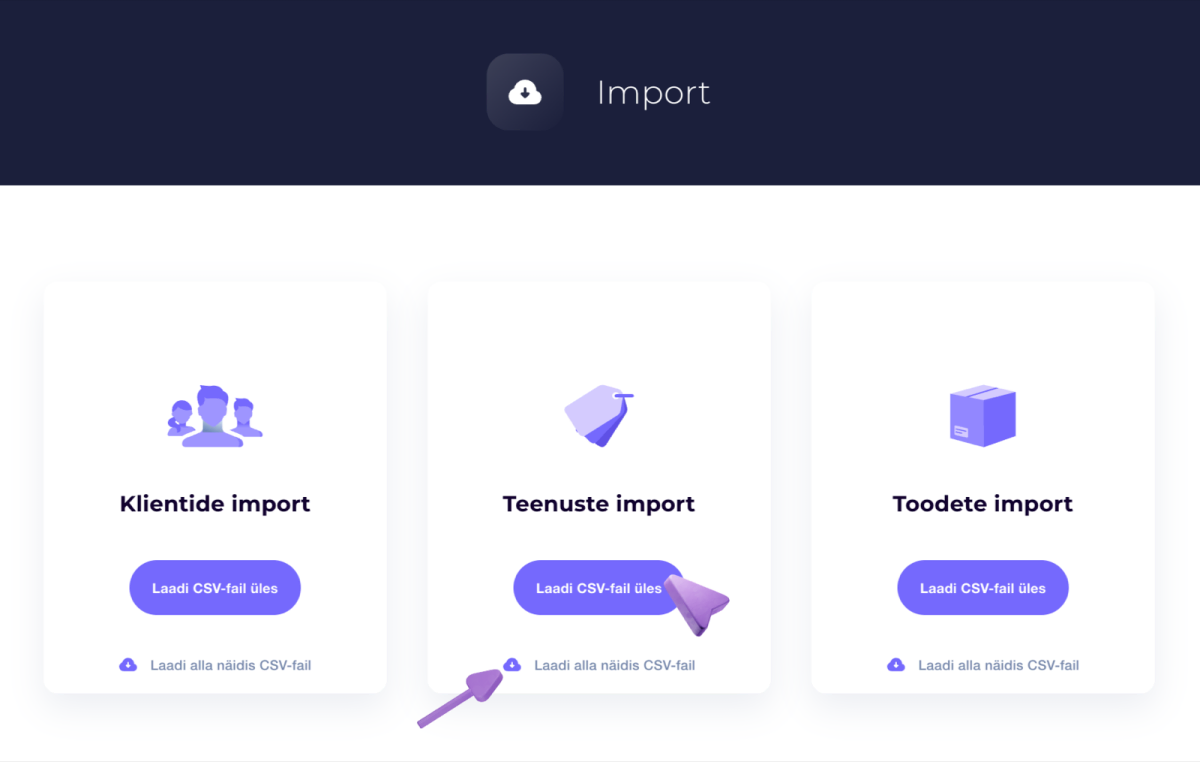
If you already have a service list, say in an Excel file, you can import it directly into SalonLife:
- Go from the Apps page to the Data Import tab.
- Select Service import.
- Follow the on-screen instructions to upload your file and map the data to the right fields.
This way, you can bring a larger service list into the system all at once, without having to re-enter everything by hand. You’ll find more about importing services in this article.
Managing services in SalonLife gives you the flexibility to set up categories, prices, durations, and additional info that suit you. Build your service list to match your actual needs. That way, you always have a clear overview of the services you offer, and clients can easily find the right one when booking online.