




















SalonLife’s Sales & POS feature helps you conveniently track both the money movements linked to bookings and your daily summaries. Below, we’ll give you an overview of how to access the sales view, what you can see there, and how to manage the data.
How Do You Get to the Sales & POS View?
From the Apps page: Scroll down to find the Sales & POS page and click it.
What Do You See in the Sales & POS View?
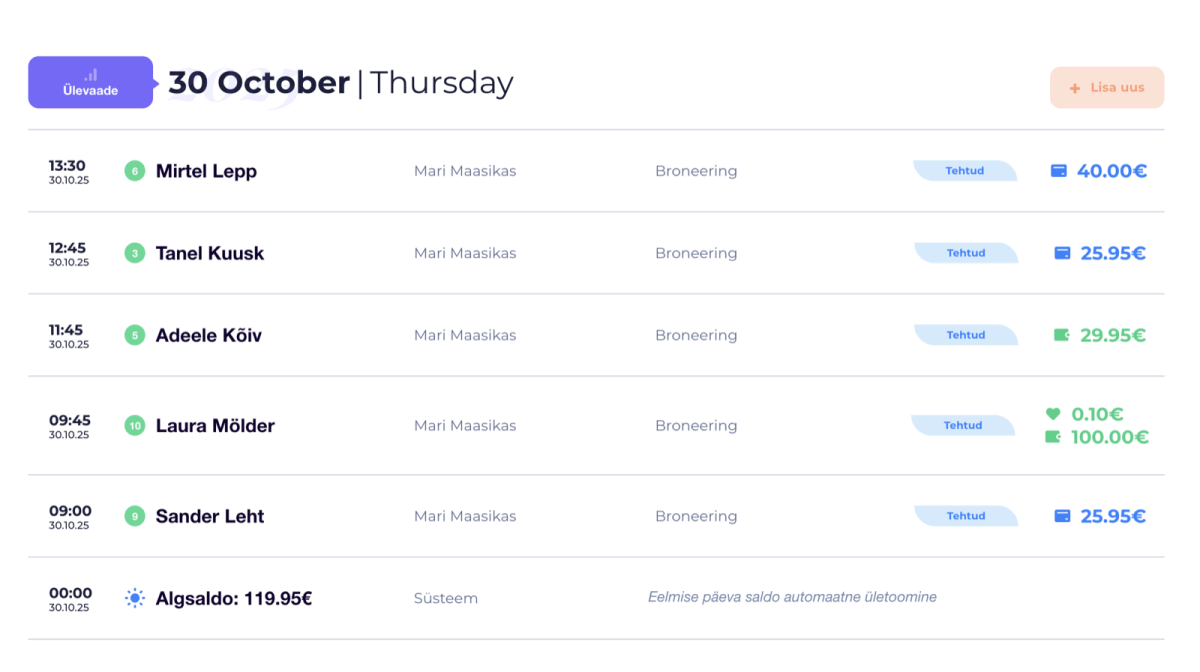
Once you’ve opened the sales page, you’ll see the following for each day:
- Booking details: See which staff member a booking belonged to and what its status is.
- Payment methods: For every booking, you can see how it was paid (cash, card, gift card, etc.).
- Tip: If someone left a tip, you’ll see the corresponding amount.
- Daily summary: The purple Overview button next to each day opens a detailed view showing:
- Total cash received.
- Card payments.
- Amounts paid with gift cards and other methods.
- Outstanding balances (if someone still owes a partial payment).
- Total tips (cash and card).
- Service and product sales figures.
- Any other cash register movements (for example, cash added to the starting float).
.png)
If you want a detailed guide to adding or changing a booking’s payment method, check out the separate article on setting up payment methods.
Cash Register Entries and Withdrawals
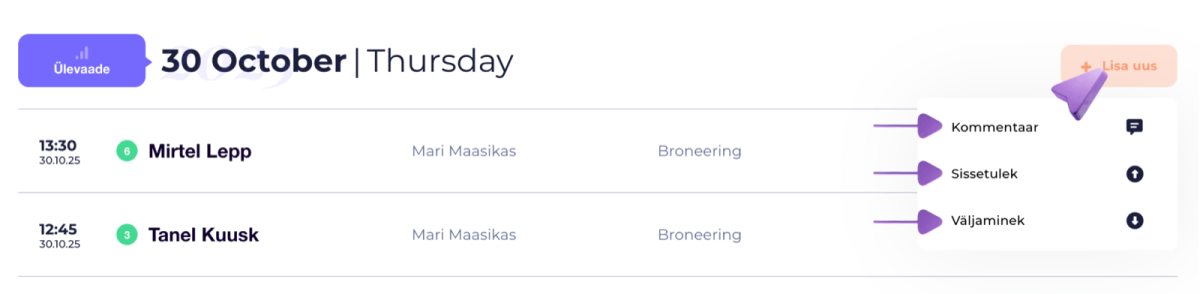
In the daily view, you can also add extra cash movements. For example, if someone puts cash into the register or takes an amount out:
- Click the + Add New button.
- Select the entry type:
- Comment: for example, a short note that the register held €X at the start of the day.
- Income: when cash is added to the register.
- Expense: when cash is taken out of the register.
- Add a short explanation or comment (e.g., "Staff member added €100 to the register").
- Save your changes.
All these actions are reflected right away in the sales page’s daily summary too. This way, you can easily track exactly what amounts were added to or taken out of the register.
A Longer-Period Overview
.png)
If you need to analyze a longer time period or more detailed figures:
- Filter date ranges on the sales page: Change the dates or select a suitable calendar period to see broader totals for bookings and payments.
- Statistics & Reports: On the Apps page, you’ll find Statistics & Reports, where you can:
- Get an overview of payments, services, and products.
- See which services are the most popular, or how products are selling.
- Filter by staff member to see their turnover, number of bookings, and payments.
These reports give you a more thorough picture of your register, both day-to-day and over the long term.
Sales & POS page is your main tool for tracking and managing your salon’s cash flow day to day. Here you can quickly see which payment methods clients are using, whether any bookings are still unpaid, or how much cash is actually in the register.
If you want more thorough statistics and a sales overview, open the Statistics & Reports view. There you’ll get detailed information broken down by services, products, and staff.
Keep your salon’s finances clearly organized and track every change in real time. This way, day-to-day management runs much more smoothly for both you and your staff!