




















.png)
SalonLife’s calendar view is the main tool you use every day to manage bookings. To make it easier to find your way around multiple employees’ calendars and see only the schedules you want, you can use staff groups. Staff groups let you display the calendars of just the employees you work with, or whose schedules you need to check right now.
Here’s how to use the Staff Groups button in the employee view.
How Do You Open the Staff Groups View?
- Open the calendar
Log in to SalonLife and open the Calendar. - Click the employee name button on the right side of the purple bar.
This opens a view listing all your employees. - Find the Staff Groups button in the top right
In the calendar view, look in the top-right corner of the purple bar for the Staff Groups button. It sits next to the employee selection button. - Open the Staff Groups list
Click the Staff Groups button. A dropdown menu opens, showing the staff groups created for your salon. - Choose the group you want
Click the staff group whose calendars you want to see. The calendar reloads and automatically shows every employee in that group side by side.
What Can You Do in the Staff Groups View?
Once you’re in the Staff Groups view, you can use the calendar exactly as you would in the regular view:
- Add new bookings
Click the date and time you want in the relevant employee’s schedule to create a new booking. - Edit existing bookings
Click a booking to change the time, service, or other details. - Quickly check multiple employees’ availability
The staff group view gives you a clear picture of who’s working, who’s free, and where you can offer new appointment times.
When Are Staff Groups Especially Useful?
- When you want to quickly open the calendars of just one team, without seeing every employee in the salon—for example, only the hairdressers, or only staff with an open shift that day.
- When you’re covering for a colleague or planning work with a specific service team.
- When you want to keep the calendar view visually cleaner and clearer.
TIP:
Every staff group has a number in front of it so you can open it faster. Press, say, 4 on your keyboard, and the calendars for the employees linked to group four open instantly.
Keyboard Shortcuts for Switching Staff Groups
In the calendar view, you can also switch between staff groups using your keyboard, which makes the work especially fast.
While you’re on the calendar page, you can press the number keys 0 through 9 to switch the calendar view instantly.
- 0 - always shows your own calendar
- 1 - shows every employee at once
- 2-4 - correspond to your predefined staff groups
- 5-9 - you can decide which staff groups these keys open. Click Create New Group, add a group name, and mark the employees who belong to it as active.
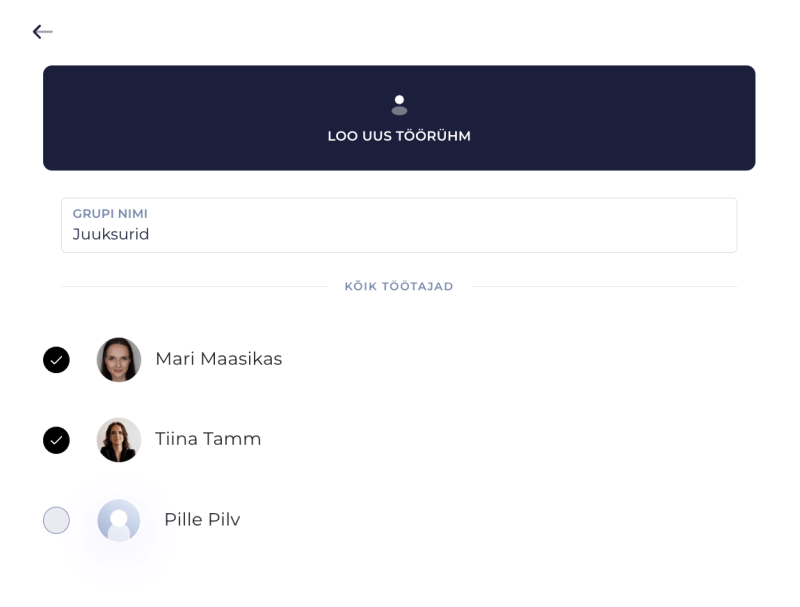
This lets you jump straight to the exact view you need to check with a single keystroke.
To leave the Staff Groups view and go back to a single employee’s calendar or your own, select My Calendar from the Staff Groups menu, or use the employee selection button to set a new view.
Using staff groups helps keep your calendar organized and makes everyday work faster and more convenient. That way, you always see exactly the employee calendars you need, right when you need them.