




















SalonLife lets you grant or restrict different users' (for example, staff members') access to certain pages, features, and functions.
You’ll often need to restrict staff access — for example, a salon owner might not want staff to see all of the salon’s statistics or change booking settings.
That’s exactly why SalonLife has its own separate User Permissions module. From there, you can quickly and easily control which pages or functions each user has access to.
Step-by-Step Guide
- Open the Apps Page
Log in to your SalonLife account and select Apps from the top menu. - Select the Staff Member
Find the staff member whose permissions you want to change. From the menu that opens, select Staff, then go to Info on their profile. - Open Permissions
Once the staff member’s profile opens, you’ll also find an option called User Permissions. Click it. - Set the Permissions
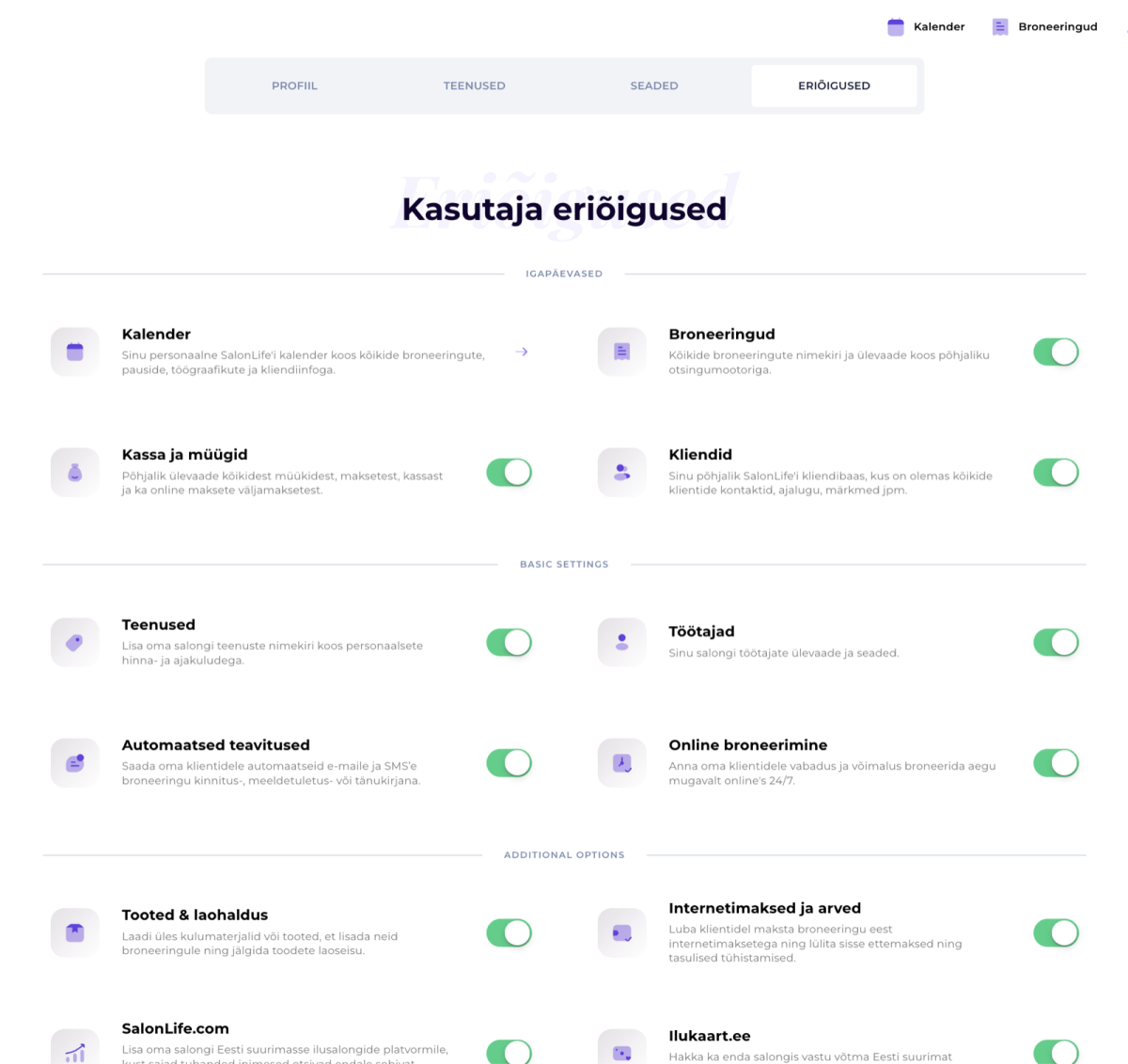
On the Permissions page, you’ll see several toggle settings you can use to decide whether the staff member can access certain functions or see certain data. Some examples:- Exporting client data
- Viewing salon or staff statistics
- Accessing and editing the invoices page
- Online booking settings
- Other important admin functions
- Save Your Changes
Once you’ve turned all the settings you want on or off, make sure to click Save at the bottom of the page. This confirms all your changes, and they take effect immediately.
TIP:
You can turn these permission settings on or off at any time. Once you save, the new permissions apply immediately.
It’s that simple! Follow these steps to grant — or remove — exactly the access each user needs to SalonLife’s various functions and pages.