




















SalonLife’s Sales & POS overview feature lets you analyze your salon’s revenue, bookings, and payments in detail. Below, you’ll find instructions on how to use the different filters and where to find the information you need.
Overview and Using Filters
.png)
Sales & POS overview shows you the sales that took place at different times and how they break down by payment method (e.g., cash, card, gift card, outstanding amounts, etc.). You can also filter this data in several ways:
- Opening the filter
- Go from the Apps page to the Sales & POS overview page.
- Click the filter icon in the top left corner.
- Filter options - In the window that opens, you can set more specific options, including:
- Staff name (e.g., only one person’s bookings)
- Payment methods (cash, card, gift card, etc.)
- Booking status (confirmed, canceled, unpaid, etc.)
- Service categories (including products, types of service)
- The date a booking was created or took place
- Viewing the results
- Once the filters are applied, only the bookings and amounts that match your chosen conditions are shown on screen.
- If you need detailed information about a specific booking (e.g., tip, services, payment details, etc.), just click that booking’s row.
To clear a filtered view, click the "Reset" button in the top right corner of the same page. This removes all the filters you’ve selected and shows the full sales and POS overview again.
.png)
TIP:
Clicking the purple Overview button on the Sales & POS page shows you the exact register balance, broken down by specific payment method.
Statistics and Reports
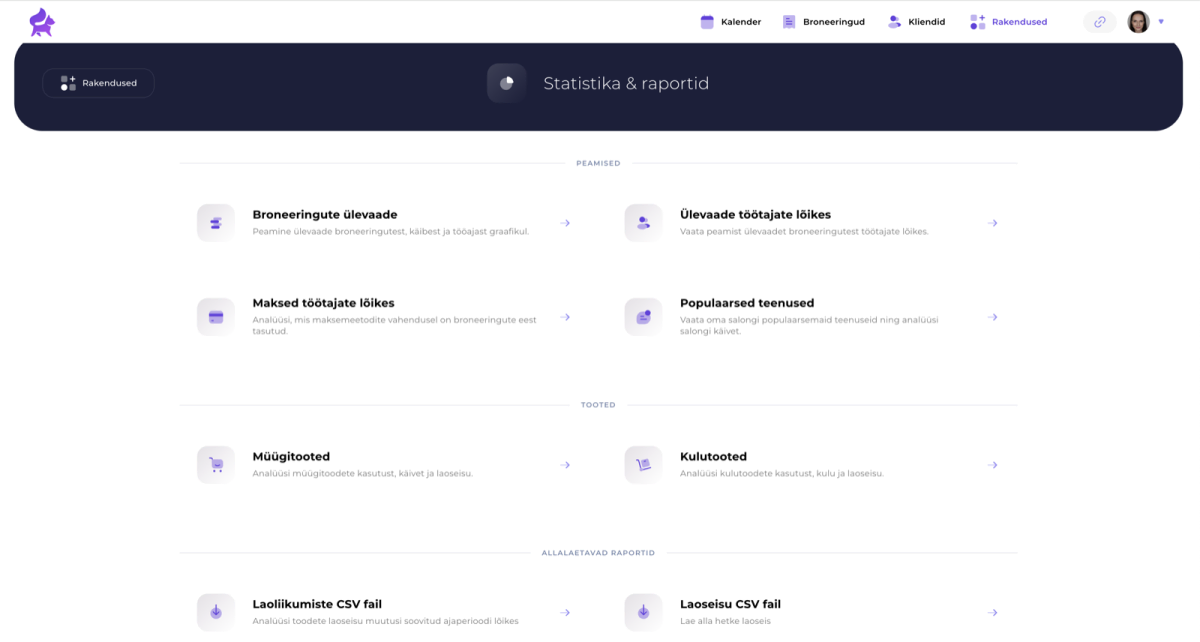
If you need an even more thorough overview, there’s a separate Statistics and Reports section on the Apps page. There you’ll find various summaries and reports covering, for example:
- Staff turnover (how much each staff member has earned)
- Payment method statistics (e.g., cash, card payments, gift cards)
- Popular services or best-selling products
- Various booking and financial overview files (including in CSV format)
You can also select a suitable time period there and take a closer look at how many bookings a given staff member takes, how services are selling, how many products have been sold or used, and so on.
.png)
- Use the filter in the top right corner of the sales and POS overview page to focus data by a specific staff member, payment method, or booking status.
- Reset the filter whenever you want to see an overview of all sales at once.
- For more detailed reports and more thorough statistics, open Statistics and Reports on the Apps page.
This way, you always have convenient access to your key sales figures, and can choose exactly the parameters that matter to you.