




















If you’ve been invited to join a salon account, here’s how to accept the invitation and what to do next. We’ll also explain how the salon owner or administrator can check whether a staff member has already accepted their invitation.
1. Finding Your Staff Invitation

If you’ve been invited to join a salon account through SalonLife, you’ll receive an automatic invitation email with the subject line "You’ve been invited to join /Salon name/."
- Be sure to check your "Inbox," "Spam," and "Junk" folders, as well as any others, to make sure the email hasn’t ended up there.
- If you can’t find the email, ask the salon owner or administrator to resend the invitation.
2. Accepting the Invitation
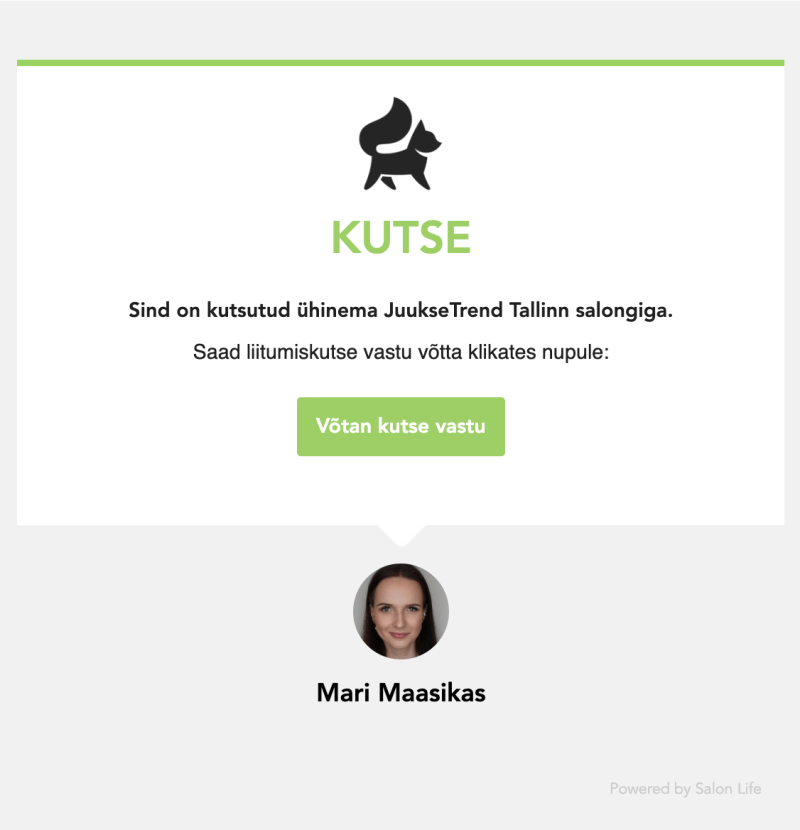
Once you’ve found the email, open it and click ''Accept Invitation''. This takes you to a dedicated page in your browser, where you’ll need to confirm whether or not you already have a SalonLife account.
Note:
The page language is determined by your browser’s language setting. So it’s possible the invitation acceptance page will appear in English. Don’t worry—that’s completely normal.
2.1 If You DON’T Have a SalonLife Account Yet
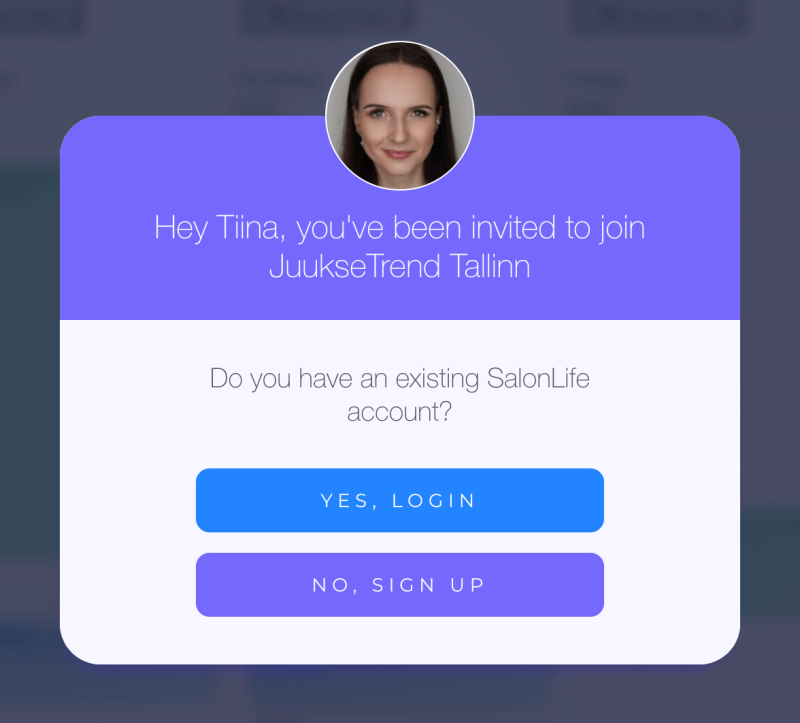
- Select "No, I don’t have an account yet" or "No Sign Up."
- Enter your name and the necessary contact details, and create a password.
- Your new SalonLife account will then be automatically linked to the salon account that sent the invitation.
2.2 If You Already Have a SalonLife Account
- Select "Yes, log in" or "Yes Login."
- Log in using the same email address that received the invitation.
- After logging in, you’ll be taken to SalonLife, where you can select the salon from the profile menu in the top right corner.
3. Multiple Salons Under One Account?
.png)
In SalonLife, each email address gives you just one personal user account, but you can work under that account at several different salons. If you work at multiple beauty salons, you can easily switch between the different salons' calendars without having to create a whole new account with a new email address.
4. How to Check Whether an Invitation Has Been Accepted
.png)
The salon owner or administrator can always check whether a new staff member has accepted their invitation via the Staff page.
- Go to the Apps page and select Staff.
- Open the staff member’s profile (click their name or the corresponding info button).
- Check for the Send Invitation button.
- If the "Send Invitation" button is still there: the staff member hasn’t accepted the invitation yet. You can resend it from there if needed.
- If the button is gone: the staff member has already accepted the invitation and has access to the salon account.
5. If You Run Into Problems
If you’ve tried to find or resend the invitation email and still can’t accept it, feel free to reach out to SalonLife support at any time. We’re happy to help you work through all the necessary steps together.
As soon as the invitation has been successfully accepted, you can start managing your work schedule and tracking and accepting bookings.